Home |

|

|

|
|
Home |
|
|

|
Home |
|
|
|
|
Home |
|
|
|
Tip!
You can maximise the window to fill the entire screen by hitting F11.
When opening Payroll, you will be directed to the mainpage: Home.
Example:
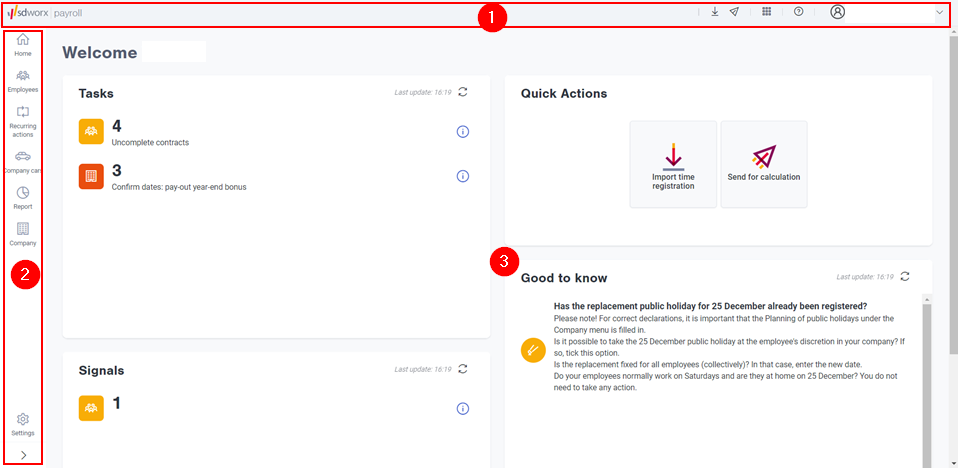
This screen consists of three sections:
The topmost toolbar on the right contains some important buttons:
|
|
|
|
|
SD Worx tools •Standard documents •Short leave (klein verlet/petit chômage) |
|
Help Here you will find links to •Questions & Answers (this will open he Payroll FAQ in French) •This manual from Payroll •Recruitment information •Departure information •NSSO Dimona website •Online support: screen-sharing support |
|
Profile Here you will find the picture (if one has been uploaded) and the name of the user. |
You can make the main menu wider (or narrower) using the small arrow at the bottom under Settings.
The main menu consists of the following company and employee positions:
On the Home screen you will find •Tasks and useful information •Buttons for creating a new contract, importing the time registration and forwarding the wage calculation order |
|
Employees |
Clicking on the button Employees will take you to the employee overview. |
Recurring actions |
The Recurring actions button allows you to go to the following screens •Overview of info to be sent •Administration of temporary unemployment •Follow up economic unemployment See also: Recurring actions |
Company cars |
Tool for car park management. |
Report |
Under Reporting you will find •My reports •Report library •Audit reports See also: Reporting |
Company |
The Company button allows you to go to the following screens •Show eDox documents •Agreements with SD Worx •Contact info •Planning holidays •Planning collective leave See also: Company |
Settings |
The following screens can be accessed via the Settings button:
•Manage extra master data •Manage services and amounts •Employee filter •User rights (only visible to the standard contact person) See: Settings |
Tasks |
You need to take action for tasks.
You can consult your confirmed tasks on employer level on the screen Agreements with SD Worx (via Entreprise).
|
|||||||||||||||||||||||||||||||||||
Signals |
This is where we highlight things that are important to you, but for which you do not have to do anything immediately in Payroll.
|
|||||||||||||||||||||||||||||||||||
Quick actions |
You can also find two buttons from the top toolbar here: |
|||||||||||||||||||||||||||||||||||
Good to know |
Announcements, useful information, tips & tricks, etc. |



 allows you to set the language and unsubscribe.
 , you can refresh the tasks.