Exchange of personal data between Strobbo and Payroll |

|

|

|
|
Exchange of personal data between Strobbo and Payroll |
|
|

|
Exchange of personal data between Strobbo and Payroll |
|
|
|
|
Exchange of personal data between Strobbo and Payroll |
|
|
|
The following fields are automatically populated in Payroll from Strobbo so that you only need to register and maintain the fields in Strobbo (*):
•Personal details: name, first name, INSZ no, marital status, nationality, sex, language, date of birth, place of birth, country of birth, educational level
•Address
•Administration (identification): home phone no., mobile phone no., email
•Partner: name, first name, date of birth, professional income, partner is disabled
•Dependants
•Administration (contract): clock number, account number, BIC
You can recognise the relevant fields in Strobbo by the SD Worx logo.
(*) This requires activation in Strobbo.
Strobbo sends the changed or new data overnight by default. In addition, you have the option of sending the data of a certain employee before it is sent automatically.
For more information on the operation of the automatic exchange on the Strobbo side, please refer to the Strobbe manual.
Different situations are possible, depending on whether or not the employee has an active contract in Payroll when the data is received:
•The employee has an active contract: the data is updated immediately.
•The employee does not have an active contract: you receive the task Employees to be completed (from other applications).
▪If Payroll subsequently completes an incomplete contract for the employee concerned, Payroll will include the data sent from Strobbo. The employee then disappears from the task Employees to be completed (from other applications).
If you click on the task Employees to be completed (from other applications), you will see an overview of the employees of whom data has been sent from Strobbo.
A distinction is made between employees for whom a Dimona declaration has been submitted already via a channel other than Payroll (and whose contract is therefore incomplete) and employees without a Dimona declaration. You will also see the date of the data import and the application from which the data was imported.
Example
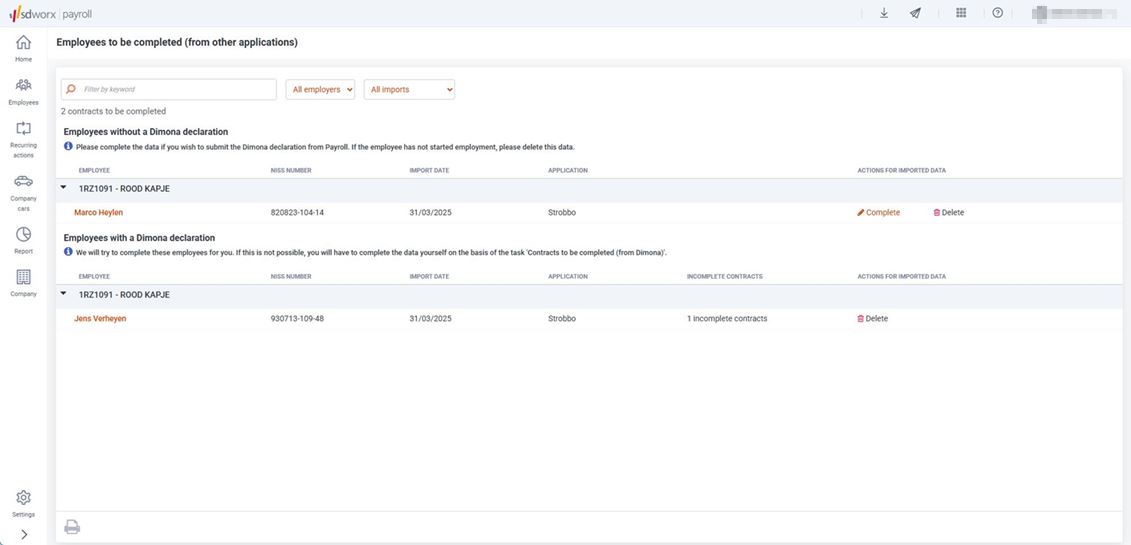
Strobbo does not submit a Dimona declaration for this employee. For example: a permanent employee, a student with a long-term contract or a flexi worker with a long-term contract.
Use the Complete button to complete the employee's data. This will take you to the wizard for creating a new employee. You will see that the data sent from Strobbo has been filled in.
You can use the Delete button to delete the data that was sent from Strobbo to Payroll. Example: the employee did not join the company.
Payroll tries to complete the incomplete contract for you, taking the data sent from Strobbo. If this is successful, the employee will disappear from the task. If Payroll cannot complete the contract, you must do this yourself with the task Contracts to be completed (from Dimona). This will take you to the wizard for creating a new contract. You will see that the data sent from Strobbo has been filled in.
Here, too, you can use the Delete button to delete the data that was sent from Strobbo to Payroll.
You only need to take action for the task Employees to be completed (from other applications):
•if you want to submit the Dimona declaration in Payroll;
or
•if you want to delete the data sent from Strobbo to Payroll. Example: the employee did not join the company.
If the Dimona declaration is submitted in Strobbo (or a channel other than Payroll), Payroll will try to complete the incomplete contract for you and include the data that was sent from Strobbo. If Payroll cannot complete the contract, you must do this yourself with the task for Contracts to be completed (from Dimona).
If an employee address is changed in Strobbo and this employee has a benefit that depends on a stated distance (in kilometres), you will receive the task Employees with a changed address for this employee, enabling you to check the benefits based on kilometres.
An example of a benefit that depends on a stated distance: a season ticket allowance with a commute distance.
If you click on the task, you will see a list of the employees concerned. The "Check benefit (address change)" button in the Status and Tasks column gives you an overview of the benefits concerned and allows you to easily adjust the kilometres.