The Onboarding function in HR Selfservice allows you to structure a new employee's personal data (address, account number, partner data, etc.) without having to retype data from Excel sheets or emails.
You can also ask the new employee to add certain documents. Example: a copy of the identity card, driving licence or a holiday certificate.
How does it work?
HR fills in the data that is already available.
1.The new employee receives an email with a link to a form.
2.The employee fills in the data in the form.
3.If OK, HR sends the data to Payroll with a single click to complete the recruitment via the task for Employees to be completed (from other applications) (more information about this task is available below).
You can find more information about this function in HR Selfservice here.
Task Employees to be completed (from other applications)
If you click on the task Employees to be completed (from other applications), you see an overview of the employees of whom data was sent from HR Selfservice.
A distinction is made between employees for whom a Dimona declaration has been submitted already via a channel other than Payroll (and whose contract is therefore incomplete) and employees without a Dimona declaration. You will also see the date of the data import and the application from which the data was imported.
Example
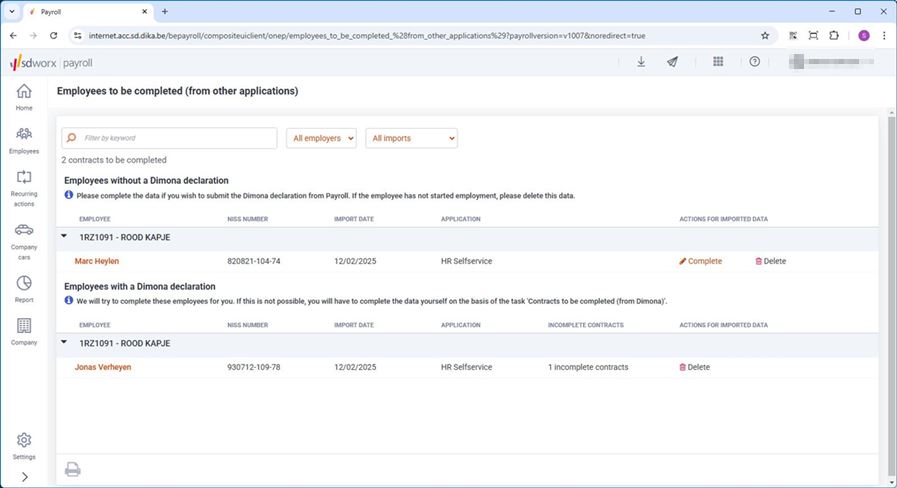
You want to submit the Dimona declaration in Payroll
Use the Complete button to complete the employee's data. This will take you to the wizard for creating a new employee. You will see that the data sent from HR Selfservice has been filled in.
You can use the Delete button to delete the data that was sent from HR Selfservice to Payroll. Example: the employee did not join the company.
If the Dimona declaration has already been submitted via a channel other than Payroll
Payroll will try to complete the incomplete contract for you. As this is a new employee, this will not be possible. You have to complete the contract with the task Contracts to be completed (from Dimona). This will take you to the wizard for creating a new employee. You will see that the data sent from HR Selfservice has been filled in.
Here, too, you can use the Delete button to delete the data that was sent from HR Selfservice to Payroll.
In summary
You only need to take action for the task Employees to be completed (from other applications):
•if you want to submit the Dimona declaration in Payroll
or
•you want to delete the data sent from HR Selfservice to Payroll. Example: the employee did not join the company.
If the Dimona declaration is submitted via a channel other than Payroll, Payroll will try to complete the incomplete contract for you. As this is a new employee, this will not be possible. You have to complete the contract with the task Contracts to be completed (from Dimona). This will take you to the wizard for creating a new employee. You will see that the data sent from HR Selfservice has been filled in.
Was this information useful?
Yes |
No


