Note:
From 01/01/2023 to 31/12/2024, the number of low-cost hours (students on solidarity contribution) was increased from 475 hours to 600 hours. From 01/01/2025, the student quota is increased to 650 hours.
You will see the following message in the monthly calendar:
The number of services booked is greater than the number of working hours requested for this student. This is not permitted. Reserve more hours in the "Dimona" tab in the fix data if possible, or book fewer services.
Has the calendar been completed correctly?
1.No: delete the services booked in excess.
2.Yes: the action to take depends on whether a student quota is still available.
a.You have already successfully reserved the maximum number of low-cost hours for this contract?
Check to see if there are still reserved hours for a subsequent quarter.
• Yes: follow method A.
• No: follow method B.
a.Have you already received this message? The number of student working hours requested is greater than the number successfully reserved with NSSO. You will not be able to forward this contract for calculation.
• Yes: follow method B.
• No: follow method C.
Method A: check to see how many extra hours you need
1.Go to the Monthly calendar and check in the counter/how so how many extra hours you need.
In the counter this is the x in the red underligned "+x h" at the last month of the quarter; in the How so these are the hours under This quarter - Too much or too little reserved.
If there are hours with decimals, round these up. Example: 9.15 hrs: enter this as 10 hours in step 2.
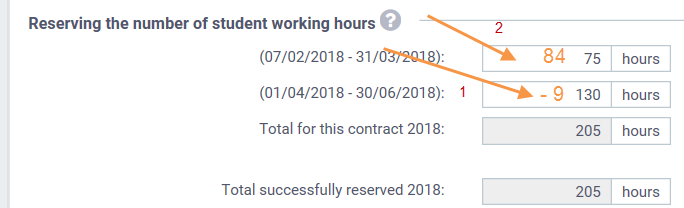
2.At the Master data screen - Dimona tab, lower the number of reserved hours for the contract in a subsequent quarter by the number of extra hours you need.
3.Click Save.
4.Once the requested number of hours has been confirmed by NSSO, increase the number of reserved hours in the current quarter by the number of extra hours you need.
If there are hours with decimals, round these up. Example: 65.15 hrs: enter this as 66 hours.
Tip! In the calendar, you will find the total number of hours under number of hours used at the last month of the quarter; in the how so they are the hours under This quarter - Used/reserved.
5.Click Save.
Example:
John has a student contract from 07/02/2018 through 30/06/2018 with employer A.
205 hours are reserved.
John also had a student contract with employer B for which 270 are already reserved.
His student quota of 475 hours for 2018 is used in full.
This shows as follows in the Monthly calendar.
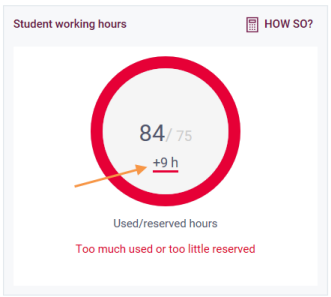
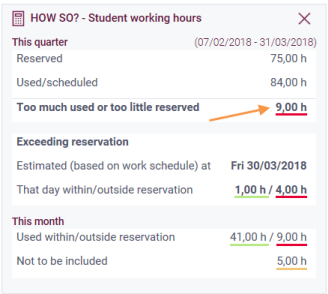
At the Master data screen - Dimona tab, employer A lowers the number of reserved hours on the second quarter with 9 (2).
As soon as this is approved by the NSSO, he can change the number of reserved hours into the number of used hours, so 84 hours (2).
Method B: there are no more profitable hours
1.Note the day on which the number of reserved working hours was used in full. This day will color red (completely or partially) in the monthly calendar. You will also find this day in the how so under Exceeding reservation. There the date and the hours within and outside reservation on that day are shown.
Tip! Make a print screen before removing the hours.
2.Remove the services and absences that exceed the successfully reserved working hours from the calendar and the Extra hours tab (= days completely or partially coloured red).
Tip! Make a print screen before removing the hours.
3. Click Save.
4.Make sure that there are no more hours too much or too little used/reserved in the how so. If there are, first fix this before you go to the following step.
5.Change the date of leaving of the contract to the date on which the last successfully reserved hours are noted (last day completely or partially coloured green).
Tip! First note the original date before carrying out this step.
6.Click Save.
7.Once the Dimona declaration has the status of Declaration sent, make a new contract with full NSSO contribution for which the date of hiring is the first day on which the first working hour subject to full NSSO contribution was worked.
a.If there were any remaining hours on the day on which the last profitable hours were used: date of hiring for a contract with full NSSO contribution = date of leaving with solidarity contribution (last day partially coloured green).
b.If there are no remaining hours: date of hiring for a contract with full NSSO contribution = day after date of leaving with solidarity contribution (= first day completely coloured red). Please note! If this day is an absence day, then it is the day after the absence day.
8.Register the other services and absences on this contract.
Example:
Joan has a student contract from 07/02/2018 through 31/03/2018.
For the first quarter 75 hours were reserved, but Jean had worked more hours in March and her student quota of 475 hours for 2018 is already used in full.
This shows as follows in the Monthly calendar.
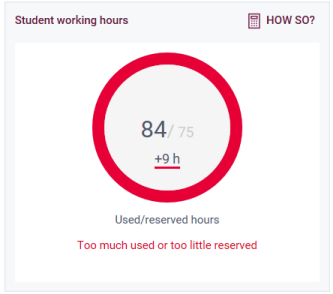
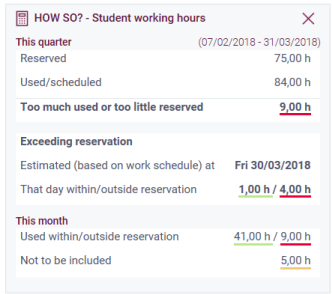
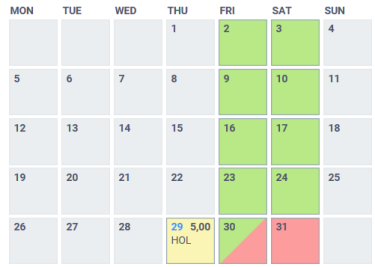
The employer must remove the hours in the calendar on the red days :
•30/03/2018 : the 4 hours outside reservation,
•31/03/2018 : all 5 hours.
Then he must change the date of leaving with solidarity contribution to 30/03/2018.
For the hours outside reservation (and the hours in April) he must make a new contract with full NSSO contribution with date of hiring = 30/03/2018. The hours removed must be booked on this new contract: 4 hours on 30/03/2018 and 5 hours on 31/03/2018.
Method C: try to request the extra hours
1.Take the used hours of the counter/how so in the Monthly calendar.
In the counter this is the number of used hours at the last month of the quarter; in the How so these are the hours under This quarter - Used/planned.
If there are hours with decimals, round these up. Example: 65.15 hrs: enter this in step 2 as 66 hours.
2.At the Master data screen - Dimona tab, change the number of reserved hours to the used hours for the relevant quarter.
3.Click Save.
Example :
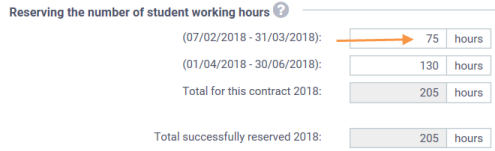
Luke has a student contract from 07/02/2018 through 31/03/2018. His employer has reserved 205 hours.
His student quota has not been used in full yet.
For the first quarter the employer has reserved 75 hours with the NSSO.
But Luke has worked in total 84 hours; 9 hours more than reserved.
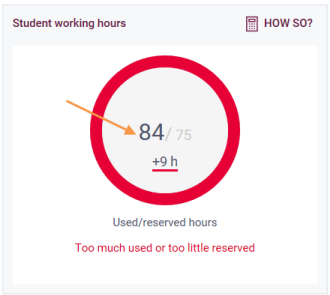
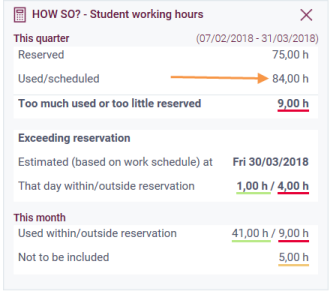
The employer can change the 75 hours into 84 hours at the Master data screen - Dimona tab.
See also: Dimona declaration for students: frequently asked questions
Was this information useful?
Yes |
No


