Monthly calendar |

|

|

|
|
Monthly calendar |
|
|

|
Monthly calendar |
|
|
|
|
Monthly calendar |
|
|
|
The monthly calendar (via Employees) offers an overview per month of the performances in accordance to the work regime.
Only if you deviate from the normal calendar will the changed performances be visible in the monthly calendar.
|
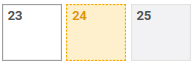
If the hours and or performances of a day are changed, this day is coloured blue and marked with an asterisk. |
|---|---|
|
If there are multiple performances on one day, the day is split by a black line. |
|
An 'A' (other) in the monthly calendar refers to a performance for which there is no shortcut button. |
|
A white day is a day with performances. |
Comment:
If a person has multiple contracts, his/her name will be present for each contract in the employee list.
You can find an overview of the different contracts of one person in the Calendar person.
You can enter absences in the calendar until the end of the year. The calendars for the following year will appear in the autumn.
You can change the monthly calendar
•for payment periods that have not been calculated and
•for all months of the current year and the previous year as long as the year has not been closed for tax purposes and
•it is not a period for a holiday pay calculation.
When you forward details of a contract to SD Worx, the contract will be frozen in Payroll. You can no longer change the monthly calendar.
Exception: You can still change the calendar for the current pay period if you have only forwarded the fixed data or corrections to SD Worx.
See also: Send for calculation.
The employee has left the company
You can adjust the monthly calendar for an employee who has left the company for a limited period of time. This means that there will be a maximum of two months between
•the current payment period of the employee's contract and
•the current payment period of the file
•and on condition that the year has not yet been closed for tax purposes.
Example: Jonathan leaves the company on 20 April. Jonathan's current payment period is May. Changes can be made to the months January, February, March and April until the current payment period of the file is August.
As soon as the current payment period of the file falls after August, you will no longer be able to make any changes to Jan's monthly calendar.
Possible actions:
•copying calendar data from one day to one day
•copying calendar data from one day to several days
•the button Remove all
•the button Reset planning
•Changing hourly wage, % and Shift.
See also: Messages in the changed monthly calendar.
On the right of the monthly calendar overview, you can see twelve shortcut buttons.
The abbreviation of the shortcut, the content of the shortcut and the order of sequence of the shortcut buttons can be changed.
See Adding, removing or changing shortcuts.
If you work with shifts, a maximum of six shortcut buttons for the shifts can be added here.
The shortcut buttons no longer work in an already-calculated pay period. If possible, put your changes in the detail panel, otherwise consult your Payroll Officer.
In a pay period that has yet to be calculated, you can only make changes with the shortcuts to days with work. You put changes to days without work in the detail panel.
See also: Adding or removing work.
Calendar data are both the number of hours and the services.
1.Go to Employees and select the employee.
2.Go to Monthly calendar.
3.Click on the day whose details you want to copy.
At the bottom of the detail panel you will see the number of hours and the services for the selected day.
4.Click on Copy.
5.In the monthly calendar, click on the day where you want to paste in the copied details.
6.Click on Paste.
Note
In the case of a day consisting of several lines of services, all the services of that day will always be copied.
Calendar data are both the number of hours and the services.
Copying calendar data from several day to several days is not possible.
1.Go to Employees and select the employee.
2.Go to Monthly calendar.
3.Click on the day whose details you want to copy.
At the bottom of the detail panel you will see the number of hours and the services for the selected day.
4.Click on Copy.
5.In the monthly calendar, click on the first day to which you want to copy and drag the mouse until all the days to which you want to copy have been selected.
Or click on the first day to which you want to copy, hold down the Shift key and click on the last day to which you want to copy in order to select days joined together.
Or click on the first day to which you want to copy and use the Ctrl key to select days not joined together.
6.Click on Paste.
Note
In the case of a day consisting of several lines of services, all the services of that day will always be copied.
The button Remove all can be the cause of an empty work schedule or empty days. It is better to use Reset planning .
1.Go to Employees and select the employee.
2.Go to Monthly calendar.
3.Click on the day whose details you want to remove.
4.Click on Remove all.
Note
Both the number of hours and the services, as well as the original planning of the selection are removed.
1.Go to Employees and select the employee.
2.Go to Monthly calendar.
3.Click on the day whose details you want to reset to the original details.
4.Click on Reset planning.
Note
Only the planning for the selected days will be reset!
If the fields Hourly wage and % are empty, and payout percentages have been agreed with the Payroll Officer, then those payout percentages apply.
If the fields Hourly wage and % are empty, and no payout percentages have been agreed with the Payroll Officer, then the value will be taken from the Master data.
You can also overwrite the fields with a different hourly wage or %.
Note
The field Shift only appears with dossiers that work with shifts.
As soon as a change is made to the pay code in the monthly calendar, one message will appear.
In the case of a change to the total number of hours for a particular day, several messages will appear.
 The pay code for one or more days has been changed
1.Go to Employees and select the employee. 1.Go to Monthly calendar. 2.In the overview list, go with the mouse over the day whose pay code has been changed. |
The total number of hours for one or more days has been changed
1.Go to Employees and select the employee. 2.Go to Monthly calendar. 3.In the overview list, go with the mouse over the day whose total number of hours has been changed. 4.In the monthly calendar, you will see in the top right corner of the changed day the total number of changed hours of that particular day. 5.Below the monthly calendar a message appears in red with the difference between the booked hours and the planned hours for the month. |
You can add or remove services on
•an already calculated payment period;
•a payperiod period yet to be calculated.
Comment
If you cannot add or remove any services in the Monthly Calendar during a payment period that has already been calculated, consult your payroll officer.
In a payment period still to be calculated, you can only use the shortcut buttons to make changes to days worked. You put changes to days without services in the detail panel.
1.Go to Employees and click on the employee. 2.Go to Monthly calendar. 3.Under Calendars click on Monthly calendar. 4.In the detail panel, click on the tab Detail. 5.Click on the small arrow by the desired day 6.Enter the Number of hours and the Service. 7.Click Save. |
1.Go to Employees and click on the employee. 2.Go to Monthly calendar. 3.In the detail panel, click on the tab Detail. 4.Click on the small arrow by the desired day 5.Delete the Number of hours and the Service. 6.Click Save. Or Use the button Restore planning or Delete everything in the monthly calendar overview. |
In general:
•Only the calculated data is displayed. You can see this in the description of the counter as '(updated until month included)'.
•The counter only shows the entitlement in days or hours. You can change this in the filter at the top right to “Days”, “Hours” or “Days and hours”.
If you wish to change the default setting, contact your payroll officer.
oFor a white-collar worker, Payroll always shows the entitlement, the number taken and the balance for statutory leave.
In the case of supplementary holidays, Payroll only shows the number taken.
oFor a blue-collar worker, Payroll only shows the number taken, both for statutory leave and supplementary leave.
•Clicking on a line opens the detail.
Specific situations:
The employee has a holiday certificate/cheque from a previous employer
If the white-collar worker has a holiday certificate/cheque from a previous employer, the holiday days of the holiday certificate or holiday pay cheque are automatically scheduled first when you book holiday for that employee.
If you click open the counter for the statutory holiday, a new line is added in this case: 'Balance of holiday certificate or holiday pay cheque'. Click on the line for the detail. •Why did I receive less pay? •How many days do I still have to take before I receive my full salary again when taking holiday? |
The white-collar worker changes work regime during the year
If the white-collar worker’s work regime has changed during the course of the year, which changes the total holiday entitlement, •a blue label 'Work system change' appears on the statutory leave counter and •the changed entitlement will also appear in blue. Warning! By opening the detail (clicking on the line), you can see in which month the regime change took place by the indication 'WSC' (blue) on that month.
How does Payroll calculate the new total entitlement (blue)? The new total entitlement is calculated on the basis of the last balance (coloured blue) + the days/hours taken (coloured blue). |
It is possible to report on this. Four standard reports are available in the Report Library:
•Overview of leave counters for white-collar workers - days
This report provides an overview of your white-collar workers’ statutory leave entitlements in days. If there is a holiday certificate or holiday pay cheque for your white-collar workers, the leave entitlement will be split into an entitlement based on this holiday certificate or holiday pay cheque and an entitlement based on their work for you. For each white-collar worker, you can see whether counting in Payroll is done in days or hours. You can also see whether an employee has changed the work system in the course of the year.
Important : The report does not take into account planned leave or corrections that have not yet been calculated.
•Overview of leave counters for white-collar workers - hours
This report provides an overview of your white-collar workers’ statutory leave entitlements in hours. If there is a holiday certificate or holiday pay cheque for your white-collar workers, the leave entitlement will be split into an entitlement based on this holiday certificate r holiday pay cheque and an entitlement based on their work for you. For each white-collar worker, you can see whether counting in Payroll is done in days or hours. You can also see whether an employee has changed the work system in the course of the year.
Important : The report does not take into account planned leave or corrections that have not yet been calculated.
•Overview of leave counters for blue-collar workers
This report provides an overview of statutory leave taken by your blue-collar workers. The report shows the statutory leave taken in both days and hours.
•Overview of missing periods composition leave entitlements
This report provides an overview of periods for which holiday certificates or holiday pay cheques are possibly missing for your white-collar workers. You are also provided with an overview of their statutory holiday entitlements calculated on the basis of data currently available to SD Worx.
More information can be found here.